Thinqloud AdminSalesforce Technology

Data-tables/grid is one of the most commonly used UI component. In this blog we’ll understand the basics of jQuery Data-table like its implementation, usage and advanced features.
Data-table is one of the powerful jQuery plugin used for creating table and adding interactions to them with very minimal efforts. In addition, it provides searching, sorting and pagination without any development efforts.
The topics I am going to cover in this blog are –
Get the library files from the DataTables website.
Data table Plugin can be downloaded from the following links – https://datatables.net/download/index http://jquery.com/ In case you don’t want to maintain files locally, then you can use CDN’s like Microsoft CDN.
Understanding library conventions Before going to implementation, it would be useful to understand the conventions used in the data table library.
Hungarian notation are used for naming variables, so basically it adds certain prefix to its name which helps to understand type of data hold by the variable.

So it will be easy to identify type of data a variable is holding by the conventions mentioned above. While working with this plugin you may see multiple prefixes used together, like “ai” representing an array of integers.
DataTable plugin can work with data from a variety of sources like it can work on an HTML table or using data as an array while loading the table or it can work on data coming from an Ajax call.
So let’s get started with the implementation of datatable. We will take two examples here to understand the plugin.
Example 1 – Creating datatable with data populated in HTML table itself
<html> <head> <linkrel="stylesheet"type="text/css"href=" jquery.dataTables.css"> </head> <body> <tableid="demo"> <thead> <tr><th>Food Company</th></tr> </thead> <tbody> <tr><td>Parle</td></tr> <tr><td>Cadbury </td></tr> <tr><td>Coco Cola</td></tr> </tbody> </table> <scriptsrc="https://ajax.googleapis.com/ajax/libs/jquery/2.2.4/jquery.min.js"></script> <scripttype="text/javascript"charset="utf8"src=" jquery.dataTables.min.js"></script> <script> $(function(){ $("#demo").dataTable(); }) </script> </body> </html>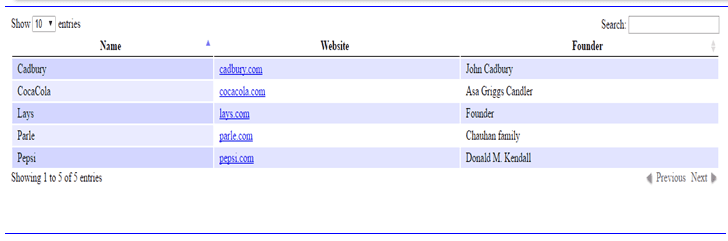
With the very minimal efforts we have created a nice looking table containing search box, sorting on click of the column name. And you will be amazed to listen that this table is responsive too. Isn’t it amazing?
If you have to implement these feature’s by your own, just imagine how much time it would have taken.
So what we have done here is
Example 2 – Creating datatable with data populated from JavaScript array
Now we need to list more food companies with more details like company name, website and founder name using a JavaScript array instead of directly inserting data in HTML table.
Now we will first create an HTML table, with column headings and an empty table body.
<tableid="demo">
<thead> <tr> <thclass="foodcompany">Name</th> <th>Website </th> <th>Founder</th> </tr> </thead> <tbody> </tbody> </table>Instantiating DataTable to this HTML table.
$("#demo").dataTable({ "aaData":[ ["Parle","parle.com","Chauhan family"], ["CocaCola","cocacola.com","Asa Griggs Candler"], ["Cadbury","cadbury.com","John Cadbury"], ["Lays","lays.com","Founder"], ["Pepsi","pepsi.com","Donald M. Kendall"] ], "aoColumnDefs":[{ "sTitle":"Food Company" ,"aTargets":["foodcompany "] },{ "aTargets":[1] ,"bSortable":false ,"mRender":function(url, type,full ){ return'<a href="'+url+'">'+url+'</a>'; } }] }); Our table will be displayed as shown below. We will have a clickable link in the website column of all record.
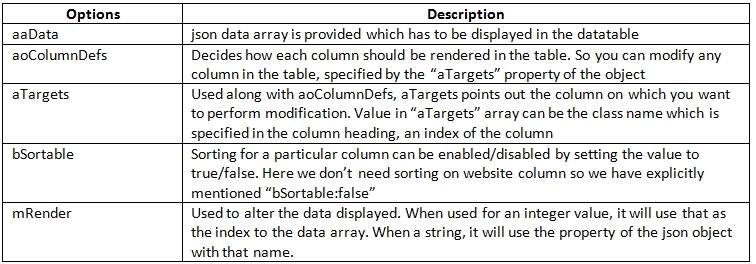
Below is the description of the datatable options used in above example to display datatable using javascript array –
DataTables is a highly flexible and feature rich jQuery library to work with tables with a very minimal efforts.
https://datatables.net/examples/index